Docs
Set up IMAP for Gmail and Google Workspace
Connect Gmail when you want Mailwright to send. Add IMAP when you want it to notice what comes back. The Mailwright fields are the same for a personal Gmail address and a Workspace address. The Google steps before that are not.
What IMAP turns on
- Reply detection in the inbox.
- Follow-ups stop after a person replies. An out-of-office note does not count as that reply.
- Reply counts on the campaign.
- Bounce notices that arrive in the inbox.
- Drafted replies continue until the client reaches the goal you set, such as booking a meeting. A drafted reply waits for approval. A reply you type in the inbox sends when you send it.
The Gmail sending connection cannot read the inbox. The IMAP app password can. Mailwright stores that password encrypted and does not show it again.
The fields everyone uses
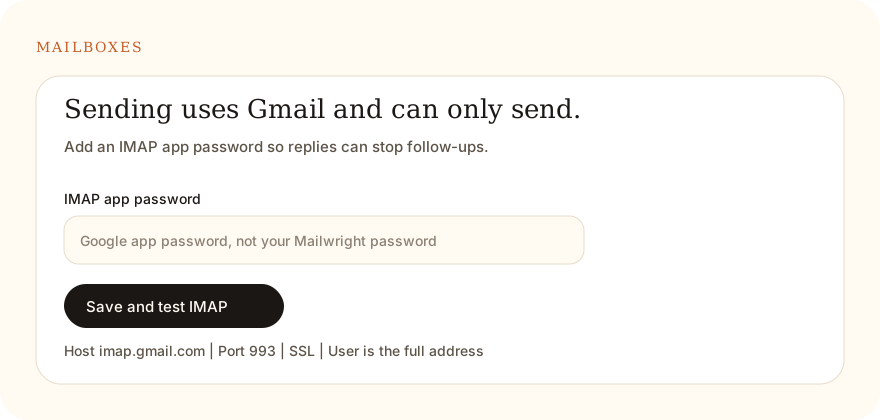
- IMAP host
- imap.gmail.com
- Port
- 993
- Security
- SSL
- Username
- The full address, such as you@gmail.com or you@yourcompany.com
- Password
- A Google app password. Not your Google password and not your Mailwright password.
Open Mailboxes, connect Gmail for sending if you want that path, then paste the app password and choose Save and test IMAP.
Personal Gmail
Use this path for @gmail.com and @googlemail.com.
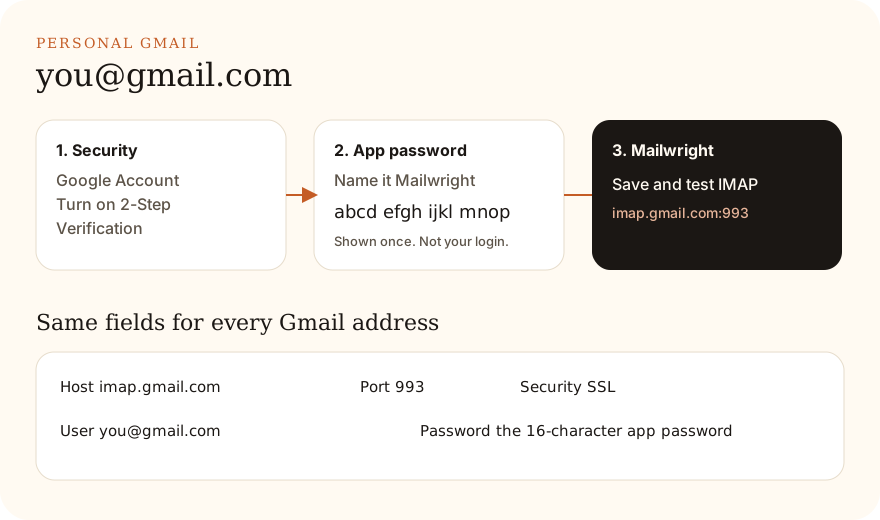
- Open Google Account security and turn on 2-Step Verification. Google only offers an app password after that is on.
- Open App passwords. Name the app Mailwright and create the password. Copy the 16 characters. Google shows them once. Google’s app password help is the reference.
- In Mailwright, paste that password into IMAP app password on the mailbox and choose Save and test IMAP. A successful test is the point where reply detection starts.
If App passwords is missing, the account may be using only a security key, or Advanced Protection is on. Those accounts cannot create an app password. Use a mailbox that can.
Google Workspace
Use this path for a work or school address, such as you@yourcompany.com. An admin has to allow IMAP before the app password can sign in.
What the admin does
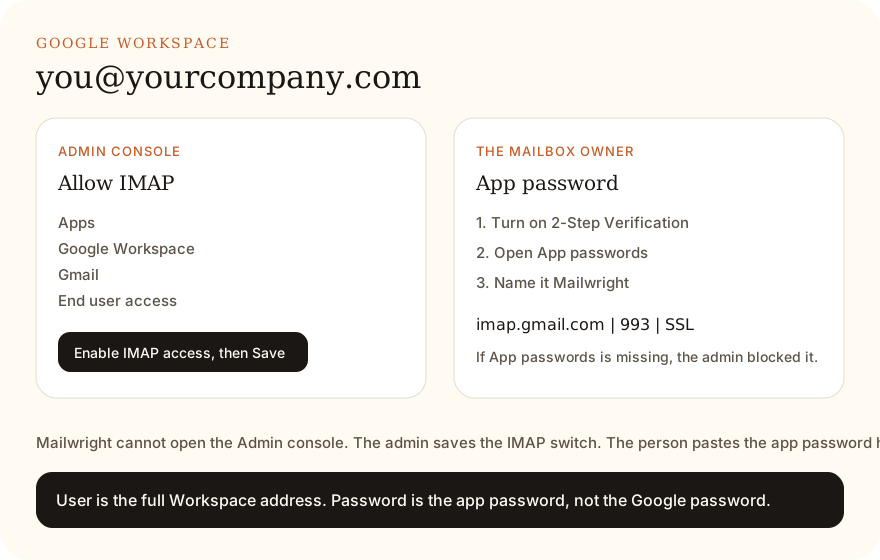
- Sign in at admin.google.com with a Gmail settings administrator account.
- Open Apps, then Google Workspace, then Gmail, then End user access.
- Under POP and IMAP access, enable IMAP for the people who will connect Mailwright, then Save. Google documents this at Turn POP and IMAP on or off for users.
What the person with the mailbox does
- Turn on 2-Step Verification on that Workspace account, unless the admin already requires it.
- Open App passwords, name it Mailwright, and copy the 16 characters.
- In Mailwright use imap.gmail.com, port 993, SSL, the full Workspace address, and that app password. Then Save and test IMAP.
If App passwords does not appear, the admin has not allowed it, the account is limited to security keys, or Advanced Protection is on. Mailwright cannot change that. The admin has to allow an app password, or that mailbox cannot use IMAP here.
After the test succeeds
Sending can already work through Gmail before IMAP is tested. Campaigns stay locked until the IMAP test passes, because reply stopping depends on it. Connect Gmail itself stays unavailable until the server has a Google client ID. The button on Mailboxes names the two redirect URIs to add.